Smart Classroom Technology Checklist for Universities
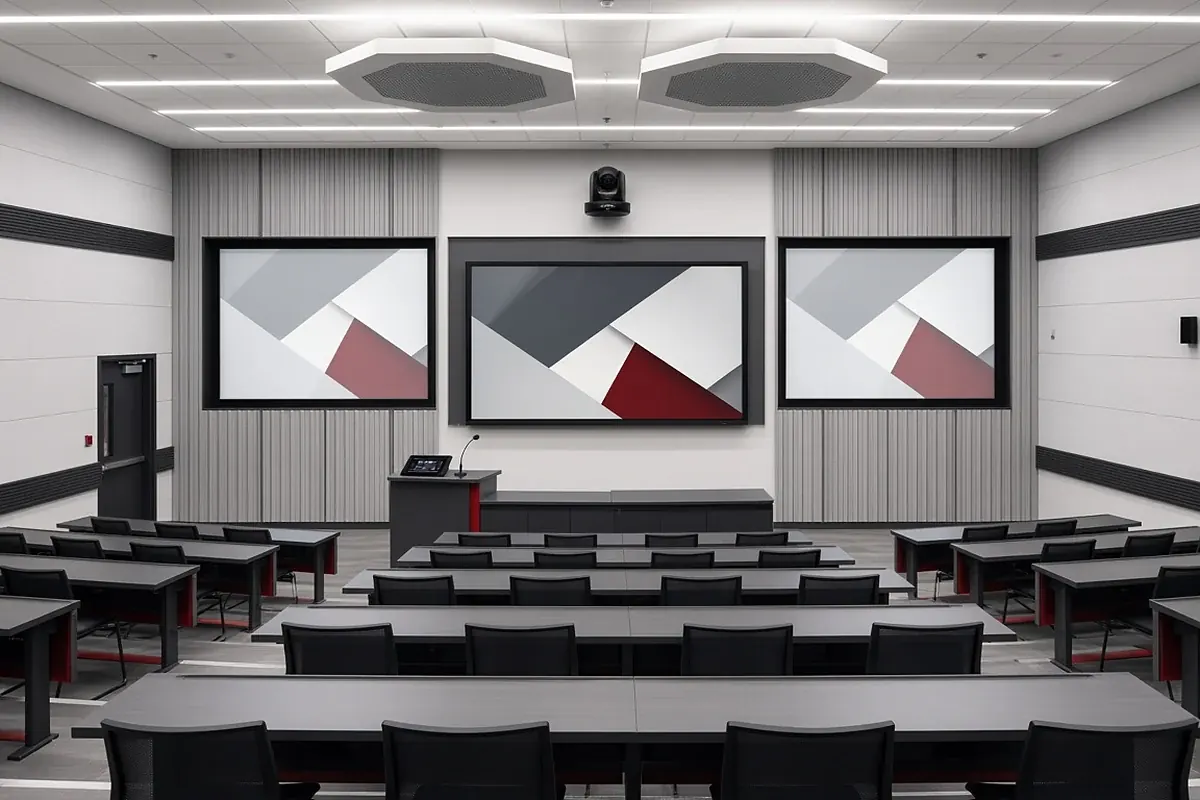
A practical smart classroom technology checklist for Pakistani universities: displays, audio, lecture capture, LMS links, power backup and tender points.
Universities across Pakistan are upgrading lecture halls and classrooms for blended and hybrid teaching. Higher education departments, private universities and medical colleges want rooms where a lecture can be delivered to students in the room and online at the same time, recorded for revision, and shared through the learning management system. The technology exists, but many smart classrooms disappoint because a single element was overlooked: audio that online students cannot hear, a camera that loses the lecturer, or equipment that resets every time the generator starts.
This checklist is written for registrars, IT directors and procurement committees preparing a smart classroom project or tender. Work through it room by room before finalising specifications.
1. Define the teaching model first
- Will rooms be used for face to face teaching only, hybrid teaching with remote students, or full lecture capture?
- How many students sit in each room, and is the seating flat or tiered?
- Which learning management system does the university use, such as Moodle or Canvas, and which video platform, such as Microsoft Teams or Zoom?
- Will recordings be published automatically, or reviewed by the faculty first?
- Who will support the rooms day to day: the IT department, a media centre or an outside contractor?
Write the answers down. They decide almost every item that follows.
2. Front of room displays
- Interactive flat panel: suits small and medium classrooms where the lecturer writes and annotates.
- Projection or large displays: needed in larger halls so students at the back can read text. Size the image from the distance to the last row.
- Dual images: one image for slides and one for the camera feed of remote students or a document camera.
- Confidence monitor: a screen facing the lecturer showing remote students, so they can see questions and reactions.
- Glare and daylight: plan blinds and anti-glare screens in rooms with large windows.
3. Audio for the room and for online students
Audio is the most common failure in hybrid classrooms. Online students hear only what the microphones capture, and in a large hall students at the back need sound reinforcement to hear the lecturer.
- Lecturer microphone: a wireless lapel or headset microphone so the lecturer can move freely, with a gooseneck microphone on the lectern as backup.
- Student microphones: ceiling array microphones from makers such as Shure or Sennheiser capture questions from the audience without passing a handheld around.
- DSP: a processor for echo cancellation, automatic mixing and feedback control, essential when room loudspeakers and microphones work together.
- Loudspeakers: ceiling or column speakers for even coverage, including for remote participants' voices.
- Assistive listening: consider a hearing loop or infrared system for students with hearing impairment.
- Acoustics: treat hard, echoing rooms with ceiling and wall panels. Reverberant rooms make every microphone sound worse.
4. Cameras and lecture capture
- Lecturer camera: a PTZ camera at the back of the room with automatic presenter tracking, from makers such as Sony, Panasonic, Lumens or AVer.
- Audience camera: a second camera facing the students, so remote participants see questions being asked.
- Content capture: slides and annotations recorded alongside the camera feed.
- Recording platform: a lecture capture system, such as Panopto or a hardware recorder, scheduled from the timetable and publishing to the LMS automatically.
- Privacy: clear signage and policy on recording, and a privacy mode button for the lecturer.
5. Connectivity and content sharing
- A lectern with HDMI and USB-C inputs for visiting lecturers' laptops.
- Wireless sharing for lecturers and, where appropriate, students.
- A room PC or OPS module for teaching software and the video platform.
- A document camera for subjects such as engineering, mathematics and medicine.
- Network ports and Wi-Fi capacity planned for the full student count, not just the lecturer.
6. Control and simplicity
Lecturers have minutes between classes. A single touch panel should switch the room on, select the source, start recording and join the online session. Use a consistent layout in every room, so a lecturer who teaches in five buildings meets the same interface every time. Central monitoring lets the IT team see which rooms have faults before the next lecture begins.
7. Power, environment and infrastructure
This is where many campus projects in Pakistan succeed or fail.
- Put the room PC, DSP, recorder, network switch and control processor on an online UPS, so generator changeovers do not interrupt lectures or corrupt recordings.
- Use surge protection on every rack, and earth the system properly.
- Ventilate lectern and rack enclosures, especially in rooms without air conditioning during load shedding.
- Plan cable containment, floor boxes and conduits before civil work closes.
- Protect equipment from dust with filters and include cleaning in the maintenance plan.
- Provide lockable lecterns and secure mounts to prevent misuse.
8. Tender and procurement points
Public universities follow PPRA rules or the relevant provincial procurement rules. A clear specification protects both the university and bidders.
- Describe performance requirements, not single brands, or write "or equivalent" with measurable criteria.
- Include a bill of quantities with every item, including cables, mounts, programming and training.
- Ask for a compliance sheet so evaluators can compare bids line by line.
- Require a demonstration or pilot room for large projects.
- Specify warranty, response times for faults and a preventive maintenance plan.
- Require as-built drawings, user guides and administrator training at handover.
9. Training and adoption
Plan short training sessions for faculty, a quick guide in every room, and a help line number on the lectern. Track recording usage and support calls in the first term, and adjust room settings based on feedback.
10. Common mistakes to avoid
- Buying displays before planning audio: the screen is visible on day one, but poor audio is what lecturers and online students complain about all term.
- A different interface in every room: lecturers lose time and confidence when each room works differently.
- No owner for the rooms: without a named team for support and updates, faults accumulate until rooms are abandoned.
- Ignoring the network: hybrid teaching and lecture capture need reliable upload bandwidth and a network designed for video.
Frequently asked questions
What is the most important part of a smart classroom?
Audio. If online students cannot hear the lecturer and questions from the room, the rest of the system cannot compensate.
Can lectures be recorded and uploaded to the LMS automatically?
Yes. Lecture capture platforms can follow the timetable, record each session and publish it to Moodle or other LMS platforms automatically.
Do we need presenter tracking cameras?
They are very useful in rooms where lecturers move around. In small rooms, a fixed wide camera may be enough.
How do we keep smart classrooms working during load shedding?
Use an online UPS for critical equipment and make sure the network switch and internet link also have backup power.
Should a tender name specific brands?
It is better to specify measurable performance and allow equivalents. This keeps competition fair and meets procurement rules.
How many rooms should we upgrade first?
Start with a pilot room or a small group of rooms, learn from them, then standardise the design across the campus.
Build your smart classrooms
Media K Solutions provides education technology solutions, including modern IT labs, Masscom labs and learning management systems, together with audio-visual systems and the infrastructure behind them.
Speak to Media K Solutions: call or WhatsApp 0300 8467101, or email info@mediaksolutions.com.
Planning a project? Call 0300 8467101, email info@mediaksolutions.com or request a quote.